
Resetting Your Password
Curriculum
Technology Support
HOW TO RESET YOUR PASSWORD
Use these instructions if you have forgotten your password or need to create a new password for your own account.
- Go to the website login page.
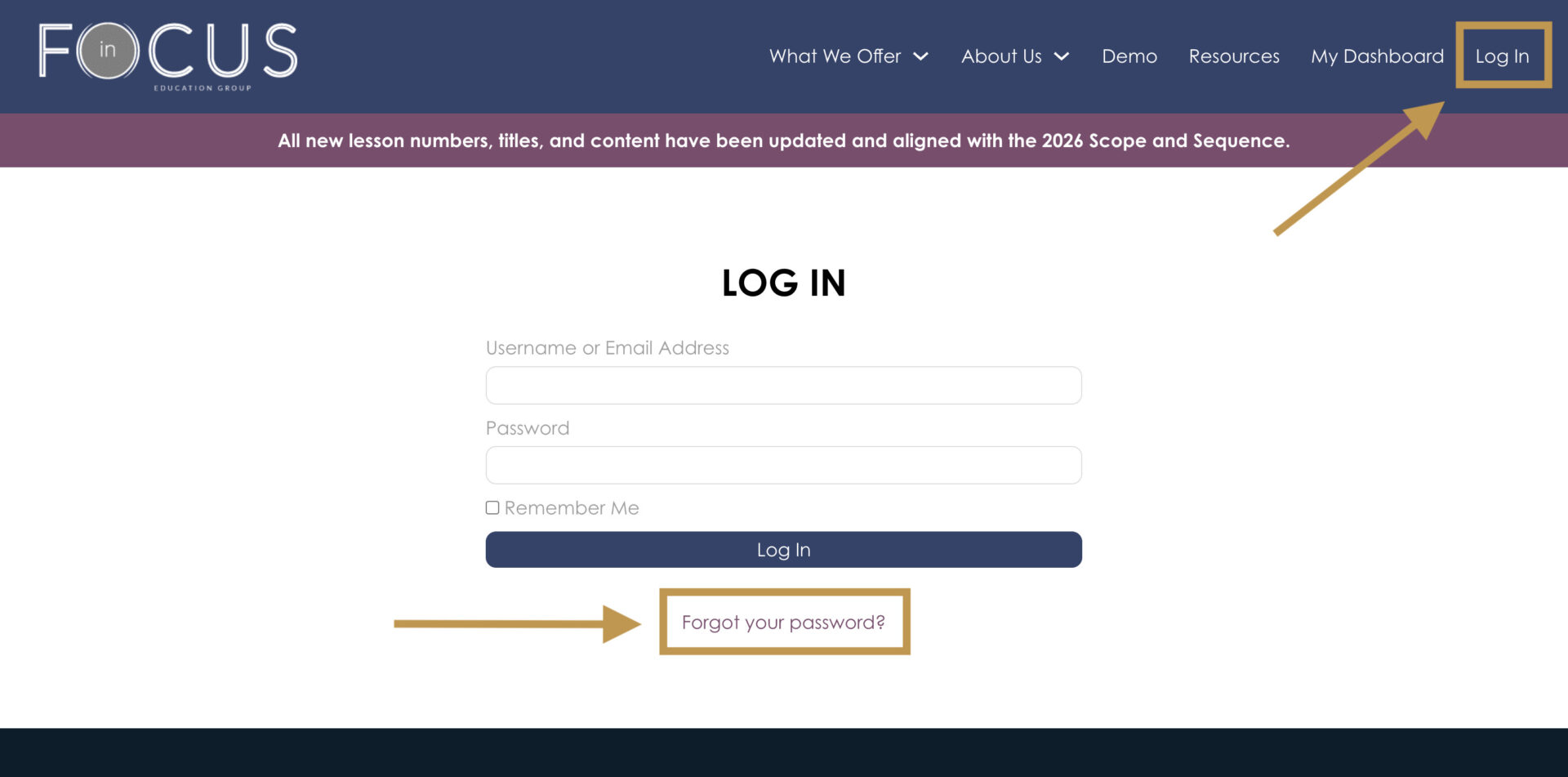
- Click the “Forgot your password?” link below the login form.
- Enter the school email address or username associated with your account.
- Click “Get New Password” or the password reset button.

- Check your email inbox for a password reset email from the website.
- Open the email and click the password reset link.
- Enter a new password. For security, use a password that is difficult for other people to guess. WordPress may automatically suggest a strong password that you can use.
- Save or reset the password.
- Return to the website login page and log in using your username or email address and your new password.
IF YOU DO NOT RECEIVE THE PASSWORD RESET EMAIL
Wait a few minutes, then check your Spam, Junk, Promotions, or other filtered email folders. You can also repeat the password reset process to request another reset email.
If this is your first time logging in, make sure you entered the same email address that is associated with your website account. Check with your school or district admins if you are unsure which email was used. You may also need to verify that the admin who created your account didn’t place a typo in their submission. If they included a typo, then can deactivate your incorrect account and create a new one without contacting support.
If you still do not receive the email, contact us for assistance using the chat widget or contact page.
IMPORTANT
Password reset links are intended only for the account associated with your email address. You do not need administrator access to reset your own password.
Do not share your password or password reset email with anyone else.